Tomato Timer for Mac
A Beautiful ADHD-Friendly Floating Pomodoro Timer That Stays With You on Mac
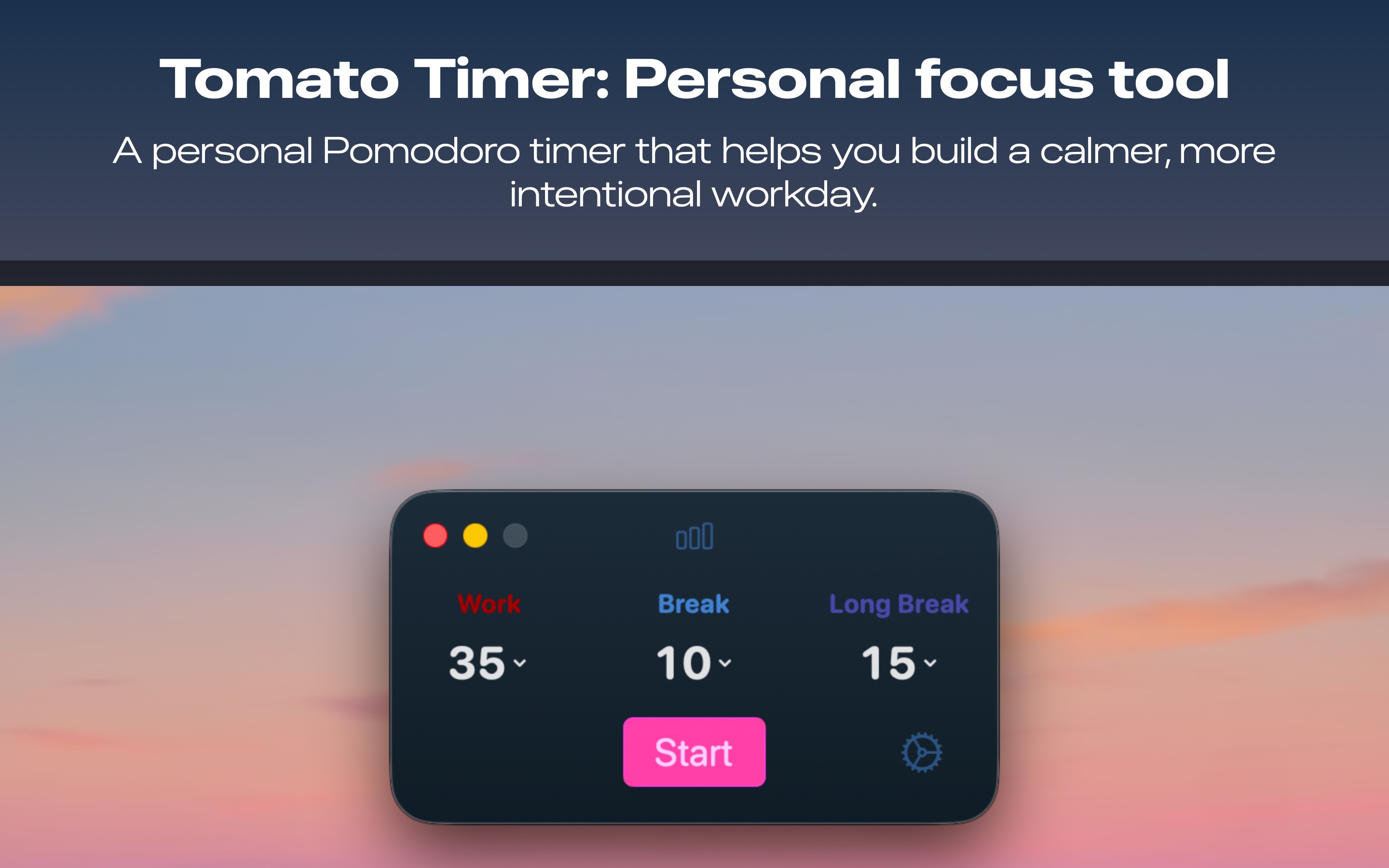
Tomato Timer for Mac is a Pomodoro-style focus timer with a translucent, always-on-top window, custom session lengths with no presets, and sound and notification cues for every cycle change — all tracked privately on your device.
Set your own focus and break times, keep the floating window visible while you work in any app, and let notifications and sounds tell you exactly when to switch phases. No menu-bar-only limitations, no presets, and no data leaving your Mac.
Leave Feedback
Tomato Timer Is Coming to Mac
Meet Tomato Timer, a Pomodoro-style timer for focused work, study, and daily tasks. Choose your own focus and break lengths, get notified with sound and system alerts when a cycle ends, and keep a beautiful translucent window floating above your other apps — with your usage history staying completely private and local to your Mac.
Leave Feedback
How Tomato Timer for Mac Fits Into Your Workflow
Tomato Timer for Mac gives you a floating window you control fully — keep it translucent, always-on-top, or tucked into the menu bar view, whichever fits your workflow. It handles every phase change automatically, with sound and notifications marking the switch.
1. Set your own focus, short-break, and long-break minutes — no presets required
2. Start the timer from the floating window or the menu bar view
3. Keep the window translucent and always-on-top while you work in any other app
4. Get a notification and distinct sound the moment a session or break ends
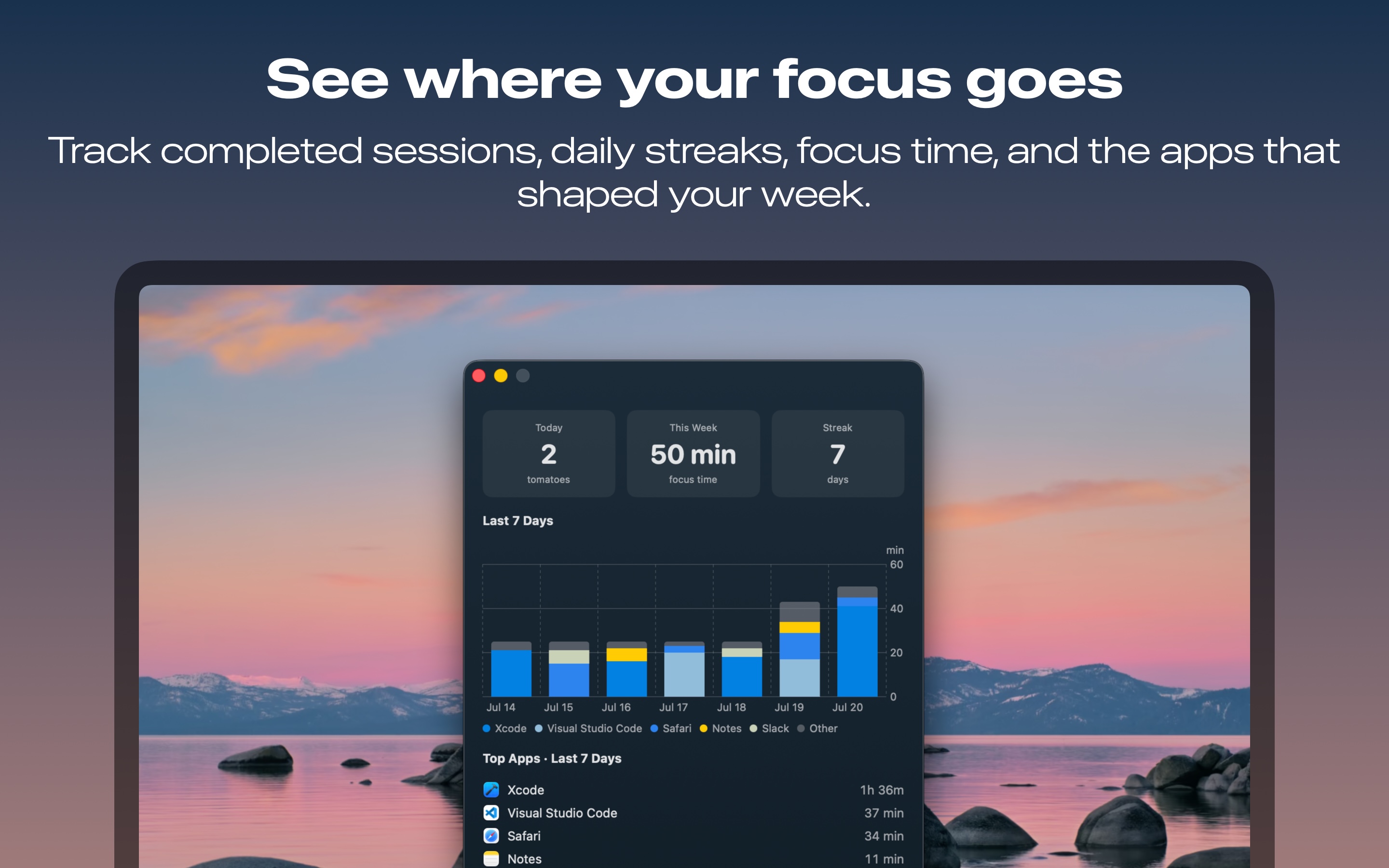
5. Review your completed sessions, daily streaks, and weekly focus time — all stored privately on your Mac
How to keep a focus timer visible without it getting in the way
Open Tomato Timer for Mac's floating window, set it to translucent and always-on-top, and position it anywhere on your screen. You'll always see your remaining time and progress layered over whatever app you're working in, without the window ever stealing focus or blocking your view.
How to get notified when a focus session or break ends
Tomato Timer for Mac sends a system notification and plays a distinct sound the moment a session or break ends, so you don't need to keep glancing at the timer. Step away from your screen during a break and you'll still know exactly when it's time to start your next focus block.
How to set your own focus and break lengths without presets
There are no fixed 25/5 or 50/10 presets in Tomato Timer for Mac — instead, set your own focus, short-break, and long-break minutes directly, along with the number of sessions before a longer break. Build a 90/20 deep-work cycle, a quick 15/3 cycle for small tasks, or anything in between.
How to keep your focus data private and local
Every completed session, streak, and app-usage record in Tomato Timer for Mac stays stored locally on your device — nothing is uploaded or shared. Review your daily and weekly focus history with the confidence that your data never leaves your Mac.
How to build a custom work/break routine for deep work
For long, uninterrupted work like coding or writing, set a custom 90-minute focus and 20-minute break window directly in Tomato Timer for Mac. For quick tasks, switch to a short custom cycle instead — since there are no presets, you're always working with numbers that fit your actual day.
A Beautiful, Private Focus Timer for Mac
Every screen is designed to stay visible without getting in the way: a translucent always-on-top window, a menu bar view for quick glances, custom session controls with no presets, and a history view built entirely from local, private data.
Frequently Asked Questions
No — Tomato Timer for Mac has a menu bar view for quick glances, but its main experience is a beautiful floating window you can keep translucent and always on top of every other app, so your timer stays visible without ever blocking your work.
Yes — Tomato Timer sends notifications and plays distinct sounds to mark the end of each focus session and break, so you always know when a cycle changes even if the window isn't in view.
Tomato Timer for Mac doesn't use fixed presets — you set your own focus, short-break, and long-break lengths directly, along with how many sessions happen before a long break, so the timer matches your day instead of a template.
Yes — the floating window can be set to always-on-top and translucent, so you can see your remaining time and progress while working in any other app without switching windows.
No — all focus session data, streaks, and app usage tracking stay stored locally on your Mac. Nothing is collected or sent anywhere; your history stays private to your device.
Yes — it tracks completed focus sessions, daily and weekly focus time, daily focus streaks, focus time for the last seven days, and the apps used during each session, all reviewable from your session history, stored locally on your device.
Yes — an optional low-stimulation mode disables animations and background tinting, keeping the interface steady and predictable for distraction-sensitive focus sessions.
Start Your First Focus Session Today
Join students, developers, writers, and ADHD brains using Tomato Timer as their daily study timer, work timer, and break timer. Free download, no account required, no data collected.
Leave Feedback
Tomato Timer for Mac — a beautiful, private focus timer with a floating always-on-top window, custom session lengths, and notification-driven cycle changes. Coming soon to the Mac App Store.
Home